Tesla Model 3: Seat Heating & Adjustment
Overview of Climate Controls
Climate controls are available at the bottom of the touchscreen. By default, climate control is set to Auto, which maintains optimum comfort in all but the most severe weather conditions. When you adjust the cabin temperature while in the Auto setting, the system automatically adjusts the heating, air conditioning, air distribution, and fan speed to maintain the cabin at your selected temperature.
Touch the displayed temperature at the bottom of the touchscreen to access the main climate controls screen, where you can adjust your climate preferences. You can return to Auto at any time by touching Auto. Touch the power button on the main climate controls screen to toggle on or off. For quick access to common controls, touch < or > to display the climate popup.
While the cabin is warming up or cooling down, the fan speed may be reduced. The touchscreen displays Warming Up or Cooling Down while getting to your preferred temperature.
Adjusting Climate Control Settings
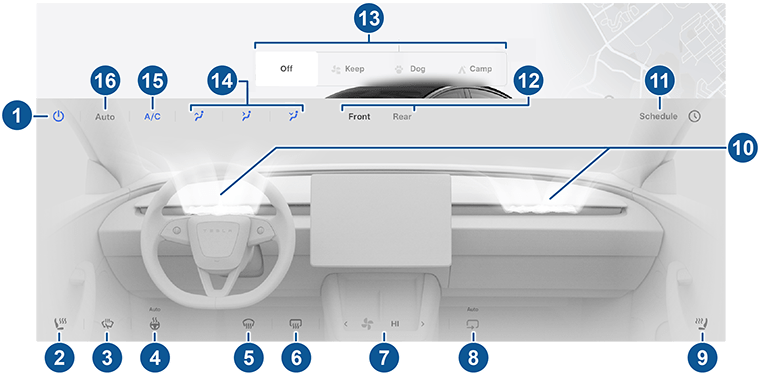
- Touch to turn the climate control system on or off.
- Touch the driver's side seat icon to adjust seat heaters for the driver. The seat operates at three levels from 3 (highest) to 1 (lowest). The seat icon displays twisting lines that turn red (heating) or blue (cooling) corresponding with the set level. Auto warms or cools the front seats based on cabin temperature. For one-touch access to seat heaters, you can add them to the touchscreen's bottom bar (see Customizing My Apps).
- Touch to turn on the wiper defrosters (if equipped). Wipers defrost for 30 minutes then turn off automatically.
- Touch to control the heated steering wheel, if equipped. The icon displays red twisting lines that correspond to the set level. If set to Auto, the steering wheel is heated as needed based on cabin temperature, independent of the climate control system settings. For one-touch access, you can add this control to the touchscreen's bottom bar (see Customizing My Apps).
- The windshield defroster distributes air flow to the windshield. Touch once to defog the windshield (the icon turns amber). Touch a second time to defrost the windshield. Touch a third time to turn off and restore the air distribution, heating, and fan to their previous settings.
- Touch to warm up the rear windshield. After 15 minutes, the rear window defroster automatically turns off. The exterior side mirrorsand charge port are also heated whenever the rear window defroster is operating. See Cold Weather Best Practices for more information on preparing for cold weather.
- Use the slider to adjust the fan speed. When in Auto, the fan speed levels change to Low/ Medium/ High.
- Touch to control the flow of air inside the cabin. Air can be drawn into Model 3 from outside or air can be recirculated inside the cabin.
- Touch the passenger's side seat icon to adjust seat heaters for the front passenger. The seat operates at three levels from 3 (highest) to 1 (lowest). The seat icon displays twisting lines that turn red (heating) or blue (cooling) corresponding with the set level. Auto warms or cools the front seats based on cabin temperature.
- Touch to adjust how air flows from the front vents. When the climate control system is operating, the passenger front vent can be turned off independently of driver's vent by touching and holding the front passenger air wave on the touchscreen and following the instructions. See Adjusting the Front and Rear Vents.
- When Model 3 is in Park, touch Schedule to set a recurring daily time when you want Model 3 to be ready to drive by preconditioning the Battery and cabin climate and/or charging during off-peak hours (see Scheduled Precondition and Charge).
- Touch to adjust the climate settings for the front or rear cabin. If Auto is enabled for the rear cabin and a passenger is detected, the set temperature is maintained for the rear cabin (see Adjusting the Front and Rear Vents).
- When in Park, these settings display to allow you to keep the climate control system operating, even when you leave Model 3 (see Keep Climate On, Dog, and Camp).
- Choose where air flows into the front cabin (windshield, face-level, or foot-level vents). You can choose one or more vents.
- Touch to turn the air conditioning system on or off. Turning it off reduces cooling, but saves energy.
- Touch Auto to turn the Auto setting on or off.
Climate Popup
Touch the temperature arrows on the bottom of the touchscreen to display a popup for easy access to some of the most common climate controls:
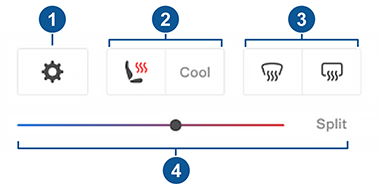
- Touch to access the main climate controls screen.
- Enable or disable heated or cooled front seats.
- Enable or disable the front or rear windshield defrosters. When the rear defrost is enabled, the exterior side mirrors will also be heated. Heating for the exterior side mirrors will automatically turn off based on the ambient temperature.
- Modify the cabin temperature by dragging the slider. You can also enable temperature splitting which allows the driver and front passenger to customize their own climate preferences. The front passenger can touch the temperature icon on the bottom of the touchscreen or the main climate controls screen to adjust. Touch Splitagain to disable climate splitting.
Keep Climate On, Dog, and Camp
The Keep Climate On, Dog, and Camp settings allow you to keep the climate control system running when in Park, even after you've left Model 3 or choose to stay inside the vehicle. These settings are useful when it is important to maintain the cabin temperature in hot or cold weather conditions. For example, when leaving groceries in Model 3 on hot days, you may want to use Keep Climate On to prevent spoilage.


Comments
Post a Comment