Tesla Model 3: Touchscreen
***
Relevant Background: “Use the touchscreen to control many features that, in traditional cars, are controlled using physical buttons (for example, adjusting the cabin heating and air conditioning, headlights, etc.). You also use the touchscreen to control media, navigate, use entertainment features, and customize Model 3 to suit your preferences. For hands-free access to common touchscreen controls, use voice commands (see Voice Commands).
If the touchscreen is unresponsive or demonstrates unusual behavior, you can restart it (see Restarting the Touchscreen).
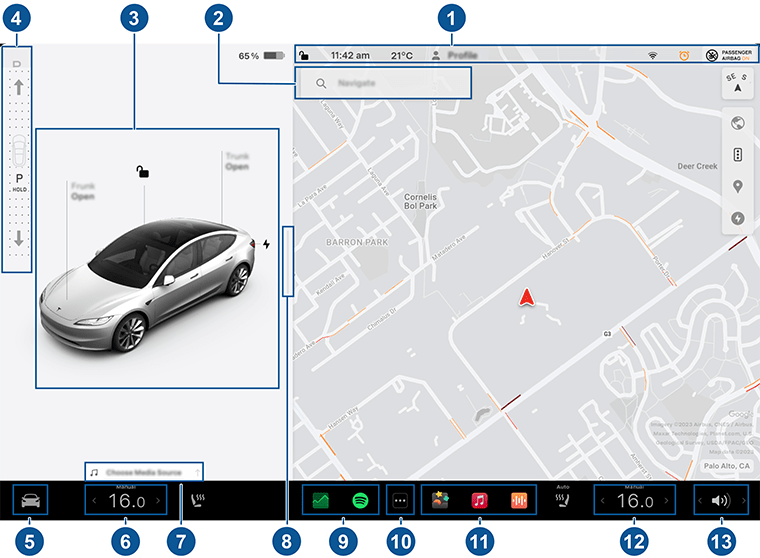
- Status bar: Find car controls and status in the top bar (see Top Status Bar Icons).
- Navigation: Change the orientation of the map, find or navigate to a destination, and change navigation settings (see Maps and Navigation).
- Car status: This area dynamically displays the current status of Model 3 as you drive, park, open doors, turn lights on, etc. Monitor this area when driving as it displays important information such as driving speed and warning messages (see Car Status). When the vehicle is in Park, you can open the trunks or charge port door. This area also houses shortcut "cards" for Media, tire pressures, and Trip Information.
- Drive mode strip: Use to shift into Park, Reverse, Neutral, or Drive. Swipe from the edge of the touchscreen towards the passenger, to bring up the drive mode strip. (See Shifting.)
- Controls: Control various features and customize Model 3 to suit your preferences. The Controls screen appears over the map. Touch an option on the Controls screen to display the various settings and preferences associated with the chosen option.
To search for a specific setting, touch Search at the top of the Controls screen. Make changes directly from the result or touch the link to jump to that option in Controls.
 When an information icon displays beside a specific setting, touch it to display a popup that provides helpful details about the associated setting.
 - Climate controls (driver): Use the left and right arrows to decrease/increase cabin temperature. Touch Split on the popup to display separate controls for the driver and passenger. Touch the temperature icon to customize climate control settings (see Operating Climate Controls). The passenger climate controls display when temperature controls have been Split to provide separate controls for the driver and passenger.
- Media player shortcut: When using the media player app, swipe to minimize/maximize.
- Full-screen Park view: Swipe towards the passenger for a full-screen Park view with media and navigation controls.
- My Apps: For one-touch access to frequently used apps and controls, you can choose what displays here. See Customizing My Apps.
- App Launcher: Touch the app launcher to open the app tray. Then touch any app to open it. The app you choose displays on top of the map. To close an app, drag it downward.
- Recent App(s): Displays the most recently used app(s). The number of recent apps displayed here depends on how many apps have been added to My Apps. If you add the maximum number of apps to My Apps, only the most recent app displays.
- Climate controls (passenger): Displays when temperature controls have been Split to provide separate controls for the driver and passenger.
- Volume Control: Controls the volume of media player and phone calls (see Volume Controls). The volume of navigation instructions is controlled separately (see Maps and Navigation)…” (https://www.tesla.com/ownersmanual/model3/en_eu/GUID-518C51C1-E9AC-4A68-AE12-07F4FF8C881E.html)
- ***
- Relevant Material:
- “
- Globally, at least 2.2 billion people have a near or distance vision impairment. In at least 1 billion of these, vision impairment could have been prevented or is yet to be addressed.
- The leading causes of vision impairment and blindness at a global level are refractive errors and cataracts.
- It is estimated that globally only 36% of people with a distance vision impairment due to refractive error and only 17% of people with vision impairment due to cataract have received access to an appropriate intervention.
- Vision impairment poses an enormous global financial burden, with the annual global cost of productivity estimated to be US$ 411 billion...” (https://www.who.int/news-room/fact-sheets/detail/blindness-and-visual-impairment)
- ***
- ***Relevant Insurance Coverage:a) Auto Insurance:i. Collisionii. Direct Compensationiii. Liability Coverageiv. Uninsured Automobileb) Life Insurance:i. Freedom Of Choiceii. Accidental and hospitalization benefits
- **
- More Resources:App: https://www.youtube.com/@numbrs3254 App Support Site: https://tekk-savvy.com Book: https://www.amazon.com/dp/B08835PX1P 3D Print Shop: https://www.flickr.com/gp/140115623@N05/y5YXF00LU8 Blog: https://jotformk.wixsite.com/ncyclopedia Hand Made Products Shop: https://www.etsy.com/ca/shop/Tekksavvy Blogger: https://www.blogger.com/profile/07524401563605547321 Shopify shop: https://tekks-shop.myshopify.com Ringtones: https://www.zedge.net/profiles/357e11a5-25fb-4415-9a6a-7da2239c2aba/ringtones Beats: https://air.bi/9D6GV Excel Templates & Calculators: https://youtu.be/-8XdrnnlNuE Tax Calculators: https://youtu.be/bzq9D0fccqESkype ID: ptlb0142_1Stock Broker Referral Link: https://portal.ingotbrokers.com/en/accounts/open-account/individual/eyJncm91cF9pZHMiOlsxNzU2Ml19Freelancer Referral Link: https://www.freelancer.com/get/ptlb0142?f=giveSkip The Dishes Courier: Referral Code: 6S69IH Uber Eats Driver: Referral: ubaidp147ue Instacart Shopper - Referral Code: TSAVVY9010D Poparide Referral Link: https://www.poparide.com/r/ubaidp Lending Loop Referral Code: 42a817


Comments
Post a Comment