Tesla Model 3: Auto Lighting
Lights
Controlling Lights

In addition to the lights that you can control from the touchscreen, Model 3 has convenience lights that turn on and off automatically based on what you are doing. For example, interior lights, marker lights, tail lights, and puddle lights turn on when you unlock Model 3, when you open a door, and when you shift into Park. They turn off automatically after a minute or two or when you shift or lock Model 3.
Exterior Lights
Exterior lights (headlights, tail lights, side marker lights, parking lights, and license plate lights) are set to Auto each time you start Model 3.
When set to Auto, exterior lights automatically turn on when driving in low lighting conditions, or whenever the wipers are active. If you change to a different setting, lights always revert to Auto on your next drive.
Touch one of these options to change and retain the exterior light setting until adjusted again or the next time you drive:
- Off: Exterior lights turn off. When driving, daytime running lights may remain on based on regulations in various market regions.
- Parking: Parking lights, side marker lights, tail lights and license plate lights turn on.
- On: Low beam headlights, side marker lights, parking lights, tail lights, and license plate lights turn on.
Dome Lights
Turn the interior dome (map) lights on or off. If set to Auto, all interior dome lights turn on when you unlock Model 3, open a door upon exiting, or shift into Park.
You can also manually turn an individual dome light on or off by touching its lens. If you turn a dome light on, it turns off when Model 3 powers off. If Model 3 was already powered off when you manually turned the light on, it turns off after 60 minutes.
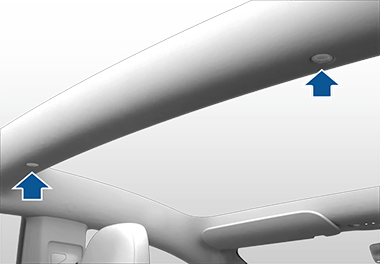
Accent Lights
Enable or disable the accent lights and customize the brightness and color to your preferences. If set to Night Only, the accent lights will automatically illuminate when dim conditions are detected outside your vehicle, or when convenience lights are on. You can also turn the footwell lights on or off.
Headlights after Exit
When you stop driving and park Model 3 in low lighting conditions, exterior lights temporarily remain illuminated. They automatically turn off after one minute or when you lock Model 3 whichever comes first.
To turn this feature on and off, touch . When Headlights After Exit is off, the headlights turn off immediately when you engage Park and open a door.
High Beam Headlights
Use the high beam headlight button on the left side of the steering wheel to control the headlights:
- Press and quickly release to flash high beam headlights.
- Press and hold to turn on high beam headlights - touchscreen displays a brief timer and you must hold for the duration of the timer to latch the high beam headlights to the on position. When headlights are on, press the button a second time to turn them off.
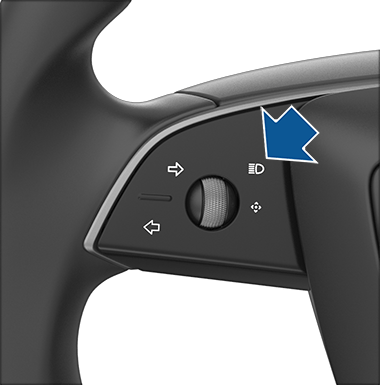
The following indicator lights are visible on the touchscreen to show the status of the headlights:


Adaptive Headlights
When Adaptive Headlights is enabled, the beam of the headlights adjusts automatically to improve your driving view. For example, when traffic is approaching Model 3 and the high beam headlights are on, individual pixels of the high beam headlights dim to reduce glare.
The headlights also adjust to curves on the road ahead to provide greater visibility at night.
When Adaptive Headlights is enabled, it is automatically turned on at the beginning of each drive. Adaptive Headlights is enabled by default and, if disabled, is enabled automatically whenever you engage Autosteer or Full Self-Driving (Supervised) . To disable it, touch , or use the lights popup that displays on the touchscreen when you press the high beam headlight button on the left side of the steering wheel.
Headlight Adjustments
To adjust the angle of the headlights, touch , then follow the onscreen instructions. You can choose which headlight you would like to adjust by selecting it on the touchscreen.
Turn Signals
To engage a turn signal, press the corresponding arrow button on the left side of the steering wheel. A turn signal cancels based on the angle of the steering wheel (for example, you finish making a turn). You can also cancel a turn signal by pressing the turn signal button a second time.
If is set to Auto Cancel, turn signals cancel automatically when Model 3 detects completion of a maneuver such as a merge, lane change, or a fork in the roadway. You can override automatic cancellation at any time (for example, you want the turn signal to remain on because you are making more than one lane change). To override, engage the turn signal by pressing and momentarily holding the turn signal button (instead of just pressing). Then, when the first maneuver is complete, the turn signal remains on. If Automatic Turn Signals is set to Off, you must cancel the turn signal manually by pressing the turn signal button after maneuvers such as a merge, lane change, or fork in the roadway.
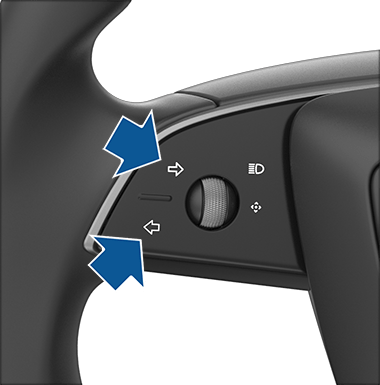

Hazard Warning Flashers
To turn on the hazard warning flashers, press the button on the drive mode selector located on the overhead center. All turn signals flash. Press again to turn off.
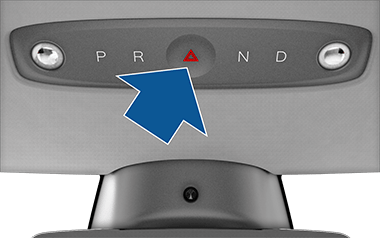
If a severe crash is detected by your vehicle, the hazard warning flashers will automatically turn on and flash quickly to increase visibility. Pressing the hazard warning flashers once will return the lights to their normal cadence. Pressing a second time turns all hazard warning flashers off.
Condensation in Head or Tail Lights
Due to weather changes, humidity levels, or recent exposure to water (such as a car wash), condensation may occasionally accumulate in your vehicle’s head or tail lights. This is normal— as the weather gets warmer and humidity decreases, condensation often disappears on its own. If you notice water buildup within the exterior lenses, or if the condensation affects the visibility of the exterior lights, contact Tesla Service...." (https://www.tesla.com/ownersmanual/model3/en_us/GUID-1C209641-AA23-47AC-B0D1-3FE3779CF222.html)
***
Relevant Insurance Coverage:
a) Auto Insurance: Collision, Comprehensive, Upset, Liability, Uninsured Auto
b) Travel & Health Coverage
c) Personal property Coverage
d) Auto Insurance: OPCF 38 - Agreed limit for automobile Electronic Accessories and Equipment
***
- More Resources:App: https://www.youtube.com/@numbrs3254 App Support Site: https://tekk-savvy.com Book: https://www.amazon.com/dp/B08835PX1P 3D Print Shop: https://www.flickr.com/gp/140115623@N05/y5YXF00LU8 Blog: https://jotformk.wixsite.com/ncyclopedia Hand Made Products Shop: https://www.etsy.com/ca/shop/Tekksavvy Blogger: https://www.blogger.com/profile/07524401563605547321 Shopify shop: https://tekks-shop.myshopify.com Ringtones: https://www.zedge.net/profiles/357e11a5-25fb-4415-9a6a-7da2239c2aba/ringtones Beats: https://air.bi/9D6GV Excel Templates & Calculators: https://youtu.be/-8XdrnnlNuE Tax Calculators: https://youtu.be/bzq9D0fccqESkype ID: ptlb0142_1Stock Broker Referral Link: https://portal.ingotbrokers.com/en/accounts/open-account/individual/eyJncm91cF9pZHMiOlsxNzU2Ml19Freelancer Referral Link: https://www.freelancer.com/get/ptlb0142?f=giveSkip The Dishes Courier: Referral Code: 6S69IH Uber Eats Driver: Referral: ubaidp147ue Instacart Shopper - Referral Code: TSAVVY9010D Poparide Referral Link: https://www.poparide.com/r/ubaidp Lending Loop Referral Code: 42a817


Comments
Post a Comment